 Springfall Blog
Efficiently Building a React + Tailwind App That Runs on Customer Sites (Production-Ready)
Build a banner injection system and learn how to develop front-end apps in this special environment.

Table of Contents
- Requirements
- Interpreting the title from the requirements
- Requirement analysis
- A similar case
- Requirement recap
- Source code and demo
- Project setup
mainscript- Loading the
live-locatorscript - Implementing Custom Element and Shadow DOM
- Making HMR work
- Tailwind
- Troubleshooting
- Closing thoughts
- References
Requirements
Our product is a website ad banner rendering system, and our customer is the
site operator. We do not access their infrastructure or assets directly; we
run a single script that renders the ad banners on their site. The customer
only has to do one thing: insert the main script into their site like this.
<scriptsrc="https://cdn.banner.com/main.js?site_id=mysite"type="module"></script>
We also provide a feature called live-locator, a tool that lets operators
choose where to insert banners in real time. It floats a fairly complex UI on
top of the customer site while interacting with it. The main script and the
live-locator script are separated, and depending on the situation,
live-locator is loaded dynamically so we do not hurt site performance and
only operators can use the editor.
All builds are based on Vite. The output is assumed to be uploaded to S3 (+CloudFront).
This post is not about implementing business logic. Banners and live placement are just simple examples... just so you know in advance.
Interpreting the title from the requirements
The title is a bit of a mash-up, right? This post will be long because we need to cover everything.
- On a customer's site: We are not building an app that runs on infrastructure we own. That brings a lot of constraints.
- React + Tailwind app: Tools that dramatically boost front-end productivity. If we can use them, we should. We are familiar with them too.
- Efficiently: We need great DX. The dev and prod environments should be as similar as possible, and HMR needs to work well.
- Production Ready: Beyond DX, the site has to work reliably for real customers.
Requirement analysis
What is a script?
Let us look at what a script is and why we need it.
We are not developing inside our own service. We have to build a feature that
works well on someone else's site. Does that mean we get sent to the
customer's company and edit their code directly? There is a better way to
minimize that effort: insert a script. If a script is inserted, we can run
our code on their site. Here, a script literally means <script src="...">.
Let us quickly look at an example. I popped open the Andar shopping site and saw all sorts of third-party scripts running.
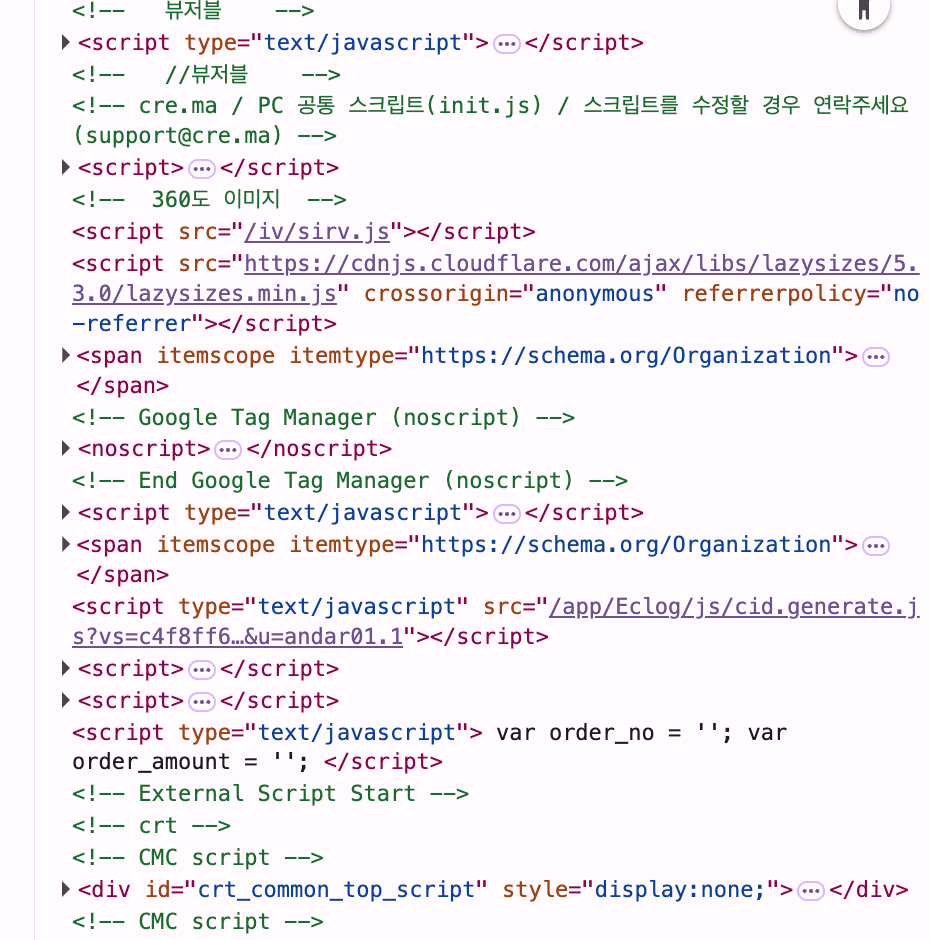
Even from that screenshot, a few services stand out:
- Beusable: user behavior analytics tool
- CREMA: marketing platform based on review data
- Google Tag Manager: a tag management system for deploying and managing marketing and measurement tags without changing site code
Installing (inserting) the script is on the store operator. After that, it is up to the script.
What is React?
React is a framework for building web apps. It is very familiar to front-end
developers worldwide. The big advantage is that it lets many developers share
the same concepts and language, improving productivity. So if we need to keep
building web apps, using a framework like this is often a good call. Our
live-locator is no exception.
However, we will not use React in the main script. The downside of slower
loading outweighs the productivity benefit. In this build, React alone was
about 200 KB. On a 5 Mbps connection, that adds roughly 0.3 seconds of latency.
The third-party scripts we mentioned earlier also do not need UI; collecting user data is enough, so there is no need for a heavy framework like React.
React provides a great developer experience. Hot Module Replacement (HMR) in
particular is fantastic. Without it, you would need to refresh every time. Our
live-locator should enjoy this convenience too.
Dynamic loading
The main script should load live-locator only when conditions are met (for
example, when an admin explicitly wants to use it). We will keep it simple: if
?bannerLocator=1 is present, load it. We can create a <script> element and
insert it.
How do we isolate it?
Frameworks like React are built for my service on my site, not for
layering my service on top of someone else's site. So they do not
consider avoiding impact on a host site. If we build live-locator with React,
we could hit situations like:
- I only meant to style
div.containerinside live-locator, but the customer site'sdiv.containergets affected too. - live-locator uses React, and the customer site also uses React, so some global variables collide. (Again, React was designed as a single, standalone web app.)
So we will use Shadow DOM + Custom Element, which makes style isolation much easier. It is not a silver bullet, but it is a quick and practical choice.
A similar case
Have you heard of the Vercel Toolbar? Vercel makes it easy to deploy Next.js apps, and when you open a PR from a branch, you get a preview build of that branch.
Below is what it looks like when a test branch is deployed to
zip-up-git-...vercel.app.
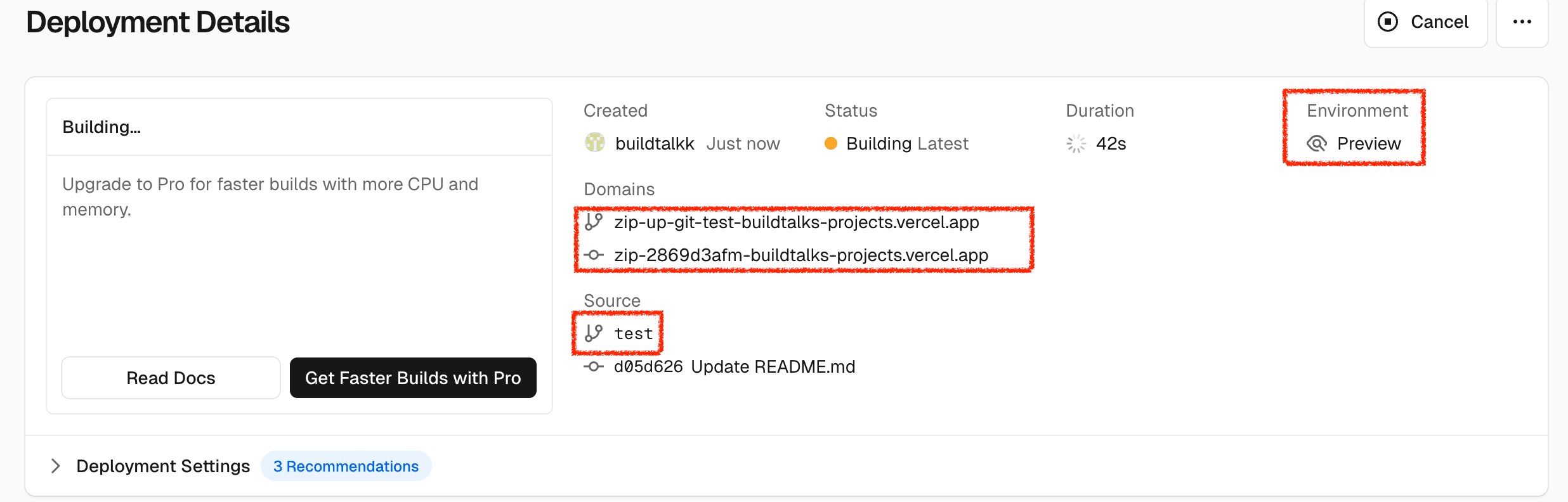
If you visit that URL, you will see a small button floating on the right. Click it and a complex UI appears on your site. The key point: my site gained a feature I did not build. This is very similar to our situation.
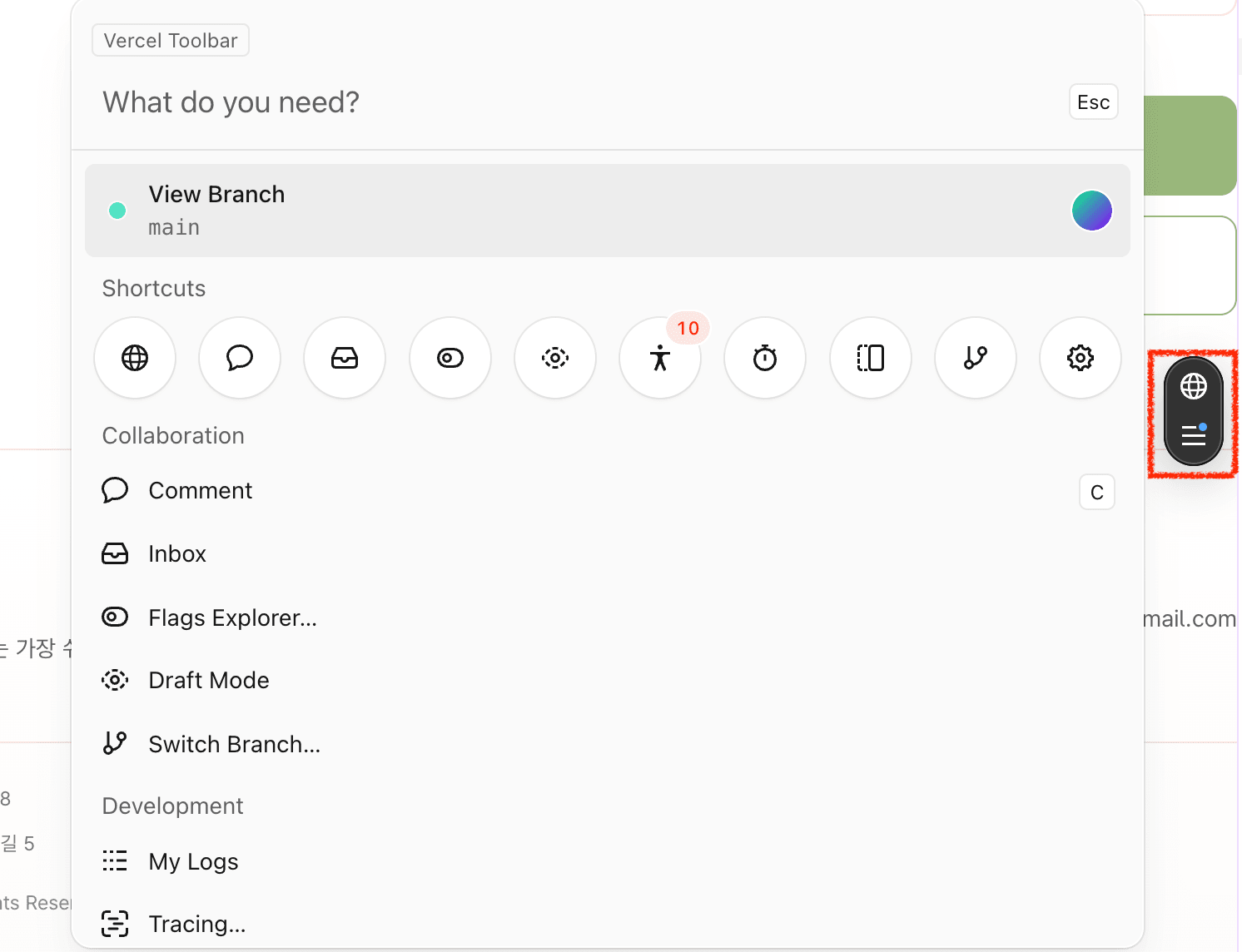
So how does it work?
When a Next.js app is built on Vercel, a snippet that loads Vercel Toolbar is
automatically injected. At the bottom of the first JavaScript file that loads
(webpack-xxx.js), you can find code like this:
(function () {if (typeof document === "undefined") return;var s = document.createElement("script");s.src = "https://vercel.live/_next-live/feedback/feedback.js";s.setAttribute("data-deployment-id", "dpl_xxxxx");(document.head || document.documentElement).appendChild(s);})();
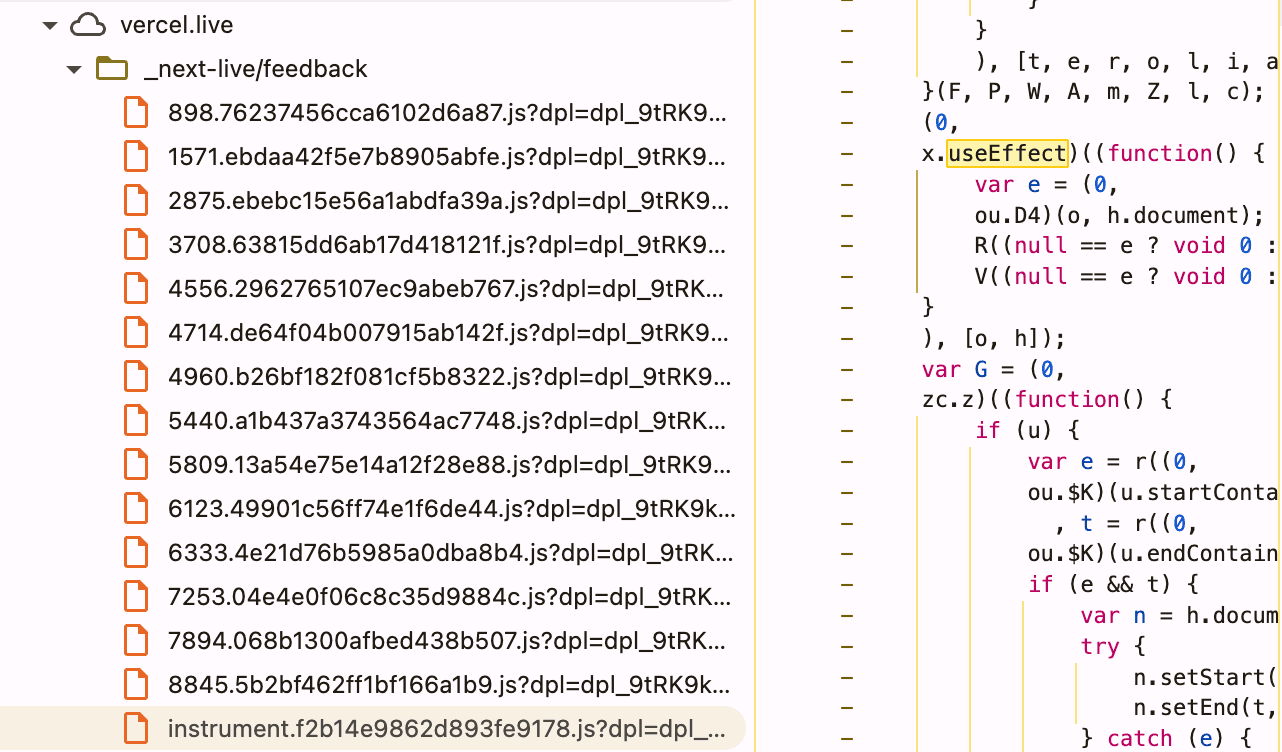
This loads Vercel's feedback.js, which in turn loads a chain of resources and
runs. As a result, an element like this gets inserted at the end of the body:
<vercel-live-feedbackstyle="position: absolute; top: 0px; left: 0px; z-index: 2147483647;"></vercel-live-feedback>
This odd-looking element is a Custom Element named vercel-live-feedback. If
you open its shadowRoot, you will see tons of style tags, many elements, and
large scripts loaded, including React.
Requirement recap
Here is what we need to build:
mainscript: banner rendering system. Small size, simple structure.live-locatorscript: operator-only tool. Loaded conditionally bymain. Built with React + Tailwind.
Source code and demo
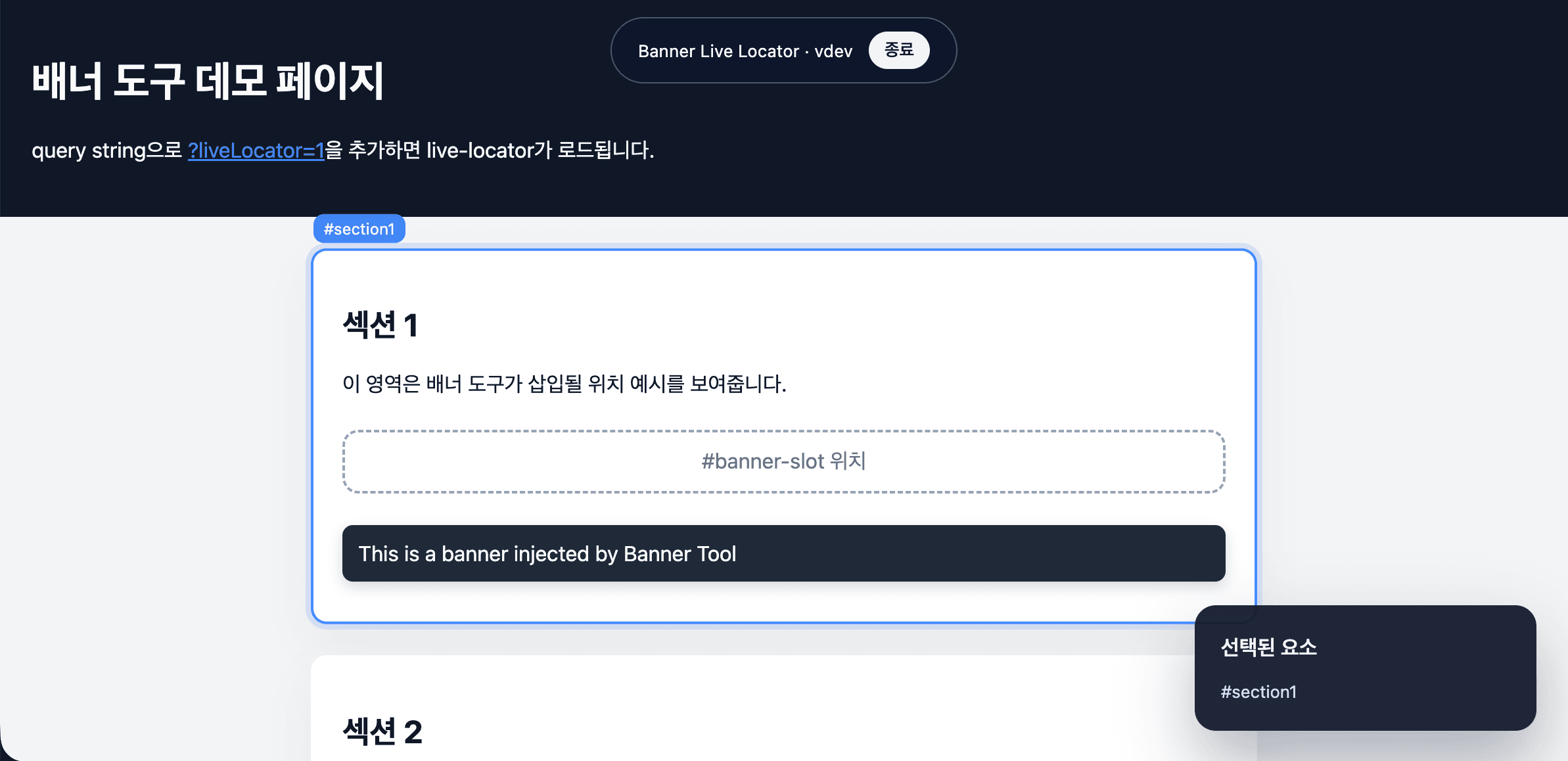
Project setup
I put together a simple monorepo. The main files (excluding small ones) look like this:
package.jsonpackages/main/src/main.tsscripts/build.mjspackages/main/package.jsonpackages/main/index.htmlpackages/main/vite.config.mtspackages/main/public/banner-locations.jsonpackages/live-locator/package.jsonpackages/live-locator/vite.config.mtspackages/live-locator/index.htmlpackages/live-locator/src/live-locator.tsxpackages/live-locator/src/LiveLocatorApp.tsxpackages/live-locator/src/live-locator.csspackages/live-locator/src/utils/selector.ts
Notable points:
- packages/main/ folder:
mainscript project (plain Vite) - packages/live-locator/ folder:
live-locatorscript project (Vite + React + Tailwind) - scripts/build.mjs: build script (runs with
npm run build)
You will need a build and deploy script, whether it is Jenkins, GitHub Actions, or a custom script, because the final output is JavaScript files that must be uploaded somewhere. In practice, uploading to something like S3 and putting a CDN in front is enough.
For the demo, I simply deploy to Vercel. If you specify the output folder in
Vercel's deployment settings and drop the build artifacts there, Vercel will
upload them for you. The scripts/build.mjs script builds each package in the
monorepo and copies the outputs into that folder.
In package.json, we set type: "module" for the project. Unlike a Node.js
server runtime, front-end code is now fine with type: "module" in most cases,
and Vite even defaults to it for new projects. So everything is
type: "module".
Vite build settings (library mode + IIFE)
Vite's default build is centered on index.html, but we need a single script
file that can be embedded on external sites. So in each package's
vite.config, we enable library mode and fix the output format to iife.
That way the script runs immediately when loaded.
import { defineConfig } from "vite";export default defineConfig({build: {lib: {entry: "src/main.ts",formats: ["iife"],fileName: () => "main.js",name: "BannerMain",},},});
live-locator follows the same pattern; just change entry, name, and
fileName.
main script
The main script is simple. It fetches banner-locations.json and inserts
banners based on the config.
async function init(): Promise<void> {window.__BANNER_TOOL__ = {version,};const configUrl = new URL("banner-locations.json", window.location.href).href;const response = await fetch(configUrl, { cache: "no-store" });const config = (await response.json()) as BannerConfig;for (const location of config.locations) {insertBannerAt(location);}await loadLiveLocator(); // we will look at this shortly}if (document.readyState === "loading") {document.addEventListener("DOMContentLoaded",() => {void init();},{ once: true },);} else {void init();}
Always remember that main.js is a script the customer inserts. If it is
injected into the head, the body might not exist when the script runs. If we
call init then, nothing happens. So we check document.readyState and
use DOMContentLoaded to call init.
The JSON file is simple. It finds selectors and inserts banners right after them.
{"locations": [{ "selector": "#banner-slot" },{ "selector": "#section2 .banner-placeholder" }]}
insertBannerAt just creates a banner and inserts it after the selector.
function insertBannerAt(location: BannerLocation): void {const banner = document.createElement("div");banner.className = "banner-tool-banner";banner.style.padding = "12px";banner.style.margin = "8px 0";banner.style.backgroundColor = "#1f2937";banner.style.color = "#f9fafb";banner.style.borderRadius = "8px";banner.style.fontFamily ="system-ui, -apple-system, BlinkMacSystemFont, 'Segoe UI', sans-serif";banner.style.boxShadow = "0 4px 10px rgba(0,0,0,0.15)";banner.dataset.bannerTool = "banner";banner.textContent = "This is a banner injected by Banner Tool";const target = document.querySelector(location.selector);if (!target || !target.parentElement) {console.warn(`[banner-tool] Selector not found: ${location.selector}`);return;}target.insertAdjacentElement("afterend", banner);}
Using
insertAdjacentElement
makes it easy to insert an element at a specific position. Here is how
InsertPosition works:
<!-- beforebegin --><p><!-- afterbegin -->foo<!-- beforeend --></p><!-- afterend -->
Loading the live-locator script
The skeleton is:
- Check for the
liveLocatorsearch param. If it is"1", loadlive-locator. - Wait for the
banner-live-locatorCustom Element to be registered (whenDefined). - Create a
banner-live-locatortag and append it to the end ofbody.
const LIVE_LOCATOR_TAG = "banner-live-locator";let liveLocatorScriptPromise: Promise<void> | null = null;async function loadLiveLocator(): Promise<void> {const param = new URL(window.location.href).searchParams.get("liveLocator");if (param !== "1") {return;}try {if (!liveLocatorScriptPromise) {// load live-locator here}await liveLocatorScriptPromise;await customElements.whenDefined(LIVE_LOCATOR_TAG);let element = document.querySelector(LIVE_LOCATOR_TAG,) as HTMLElement | null;if (!element) {element = document.createElement(LIVE_LOCATOR_TAG);element.setAttribute("version", version);document.body.appendChild(element);} else {element.setAttribute("version", version);}} catch (error) {liveLocatorScriptPromise = null;console.warn("[banner-tool] Failed to bootstrap live locator", error);}}
What should go there?
Let us think about production first. We will make main.js and
live-locator.js accessible under the same domain like this:
- https://mini-multi-scripts-live-locator.vercel.app/main.js
- https://mini-multi-scripts-live-locator.vercel.app/live-locator/live-locator.js
We could hardcode https://mini-multi-scripts-live-locator.vercel.app, but to
make it more flexible we can use
import.meta.url.
It tells us the URL of the module script itself. We can use it like this:
function loadScript(url: string, id: string): Promise<void> {// snip. createElement("script") and append to head.// Promise resolves when loaded.}const url = new URL(/* @vite-ignore */ `live-locator/live-locator.js?v=${version}`,import.meta.url,).href;liveLocatorScriptPromise = loadScript(url, "banner-live-locator-prod");
Why the /* @vite-ignore */ comment? Without it, you get this warning:
new URL(
live-locator/live-locator.js?v=${version}, import.meta.url) doesn't exist at build time, it will remain unchanged to be resolved at runtime. If this is intended, you can use the /_ @vite-ignore _/ comment to suppress this warning.
By default, Vite tries to resolve URLs at build time. But dynamic paths cannot
be resolved, so it will likely error. In our case, this is intentional
(live-locator is a separate project from main), so we add
/* @vite-ignore */.
Now let us load scripts in dev:
if (import.meta.env.DEV) {liveLocatorScriptPromise = loadScript("http://localhost:5174/src/live-locator.tsx","banner-live-locator-dev",);} else {const url = new URL(/* @vite-ignore */ `live-locator/live-locator.js?v=${version}`,import.meta.url,).href;liveLocatorScriptPromise = loadScript(url, "banner-live-locator-prod");}
Note that import.meta.env.DEV is a Vite-only value. So when you build, it
becomes false and the highlighted dev code is removed.
Implementing Custom Element and Shadow DOM
live-locator looks like this:
import { createRoot, Root } from "react-dom/client";import { LiveLocatorApp } from "./LiveLocatorApp";import { StrictMode } from "react";const ELEMENT_TAG = "banner-live-locator";declare global {interface HTMLElementTagNameMap {"banner-live-locator": BannerLiveLocatorElement;}}type ElementState = {root: Root;version: string;};class BannerLiveLocatorElement extends HTMLElement {private state: ElementState | null = null;static get observedAttributes(): string[] {return ["version"];}connectedCallback(): void {if (this.state) {return;}const shadowRoot = this.shadowRoot ?? this.attachShadow({ mode: "open" });// Render LiveLocatorApp into the shadowRoot!!this.state = { root, version };console.log("[banner-tool] Live Locator mounted", { version });}disconnectedCallback(): void {this.state?.root.unmount();this.state = null;console.log("[banner-tool] Live Locator unmounted");}attributeChangedCallback(name: string,oldValue: string | null,newValue: string | null,): void {// snip}}export function defineLiveLocatorElement(): void {if (!customElements.get(ELEMENT_TAG)) {customElements.define(ELEMENT_TAG, BannerLiveLocatorElement);console.log("[banner-tool] Live Locator element defined");}}defineLiveLocatorElement();
Important bits are highlighted:
- Custom Elements are classes that extend HTMLElement, and you register them with customElements.define. (customElements is a global object.)
- There are special lifecycle methods:
- connectedCallback: called whenever the element is added to the document.
- disconnectedCallback: called whenever the element is removed from the document.
- attributeChangedCallback: called whenever an attribute is added, removed, or changed.
- We attach a Shadow DOM with
this.attachShadow({ mode: "open" });and render the React app inside it.
- For Custom Elements, see MDN: Using custom elements.
- For Shadow DOM, see MDN: Using shadow DOM.
At this point you will already see the [banner-tool] Live Locator mounted log
in the console.
Let us stub LiveLocatorApp like this:
type LiveLocatorAppProps = {version: string;onClose: () => void;};export function LiveLocatorApp({ version, onClose }: LiveLocatorAppProps) {return <div>hello world!</div>;}
Now, back to rendering:
// snipconnectedCallback(): void {if (this.state) {return;}const shadowRoot = this.shadowRoot ?? this.attachShadow({ mode: "open" });const mountPoint = document.createElement("div");mountPoint.id = "banner-live-locator-root";shadowRoot.append(mountPoint);const version = this.getAttribute("version") ?? "dev";const root = createRoot(mountPoint);const handleClose = () => {/* snip */};root.render(<StrictMode><LiveLocatorApp version={version} onClose={handleClose} /></StrictMode>);this.state = { root, version };console.log("[banner-tool] Live Locator mounted", { version });}// later...
We create a div inside the Shadow Root, call createRoot on it, and render the
React app. But wait... do you see an error like this?!
Uncaught Error: @vitejs/plugin-react can't detect preamble. Something is wrong.
Let us keep going. I will explain what this error is and how to approach it in more detail.

Note: a tiny bit of type support
If you declare types like below, you get type support for
document.createElement.
declare global {interface HTMLElementTagNameMap {"banner-live-locator": BannerLiveLocatorElement;}}/** BannerLiveLocatorElement */const element = document.createElement("banner-live-locator");
Making HMR work
The unfamiliar word "preamble" showed up. I looked it up and found this definition:
A preamble is a signal used in communications to synchronize timing and frequency between sender and receiver before data transmission begins.
And "Something is wrong"? What an unfriendly error... It seems the dev server expects some initialization that is missing. So not only does HMR fail, it does not even load.
In React dev environments, productivity is important, so the framework provides
convenience features. HMR (or Fast Refresh) is one of them: when you save a
file, changes apply automatically. Let us see how HMR works. Below is what
you see when running npm run dev:
VITE v7.3.0 ready in 261 ms-> Local: http://localhost:5173/-> Network: use --host to expose-> press h + enter to show helpVITE v7.3.0 ready in 457 ms-> Local: http://localhost:5174/-> Network: use --host to expose-> press h + enter to show help
You can see two dev servers running. Port 5173 is the main project and 5174
is live-locator. When we access http://localhost:5173/, the local server
roughly handles the request like this:
- The browser requests
http://localhost:5173or a subfile (http://localhost:5173/src/main.ts?t=123). - The dev server reads the corresponding local file.
- The dev server transforms the file and injects extra dev and HMR code snippets, then returns it to the browser.
- The browser loads the dev tools included in the snippet (for example,
http://localhost:5173/@vite/client). - The script opens a WebSocket to the server.
- The browser also predefines how to handle future update signals per
file. That is also in the snippet, usually via an
acceptfunction.
So where does the @vitejs/plugin-react can't detect preamble. error come
from?
import { createHotContext as __vite__createHotContext } from "/@vite/client";import.meta.hot = __vite__createHotContext("/src/LiveLocatorApp.tsx");// ******************************// snip. actual LiveLocatorApp code// ******************************import * as RefreshRuntime from "/@react-refresh";if (import.meta.hot) {if (!window.$RefreshReg$) {throw new Error("@vitejs/plugin-react can't detect preamble. Something is wrong.",);}RefreshRuntime.__hmr_import(import.meta.url).then((currentExports) => {RefreshRuntime.registerExportsForReactRefresh("/Users/th.kim/Desktop/mini-multi-scripts/packages/live-locator/src/LiveLocatorApp.tsx",currentExports,);import.meta.hot.accept((nextExports) => {if (!nextExports) return;const invalidateMessage =RefreshRuntime.validateRefreshBoundaryAndEnqueueUpdate("/Users/th.kim/Desktop/mini-multi-scripts/packages/live-locator/src/LiveLocatorApp.tsx",currentExports,nextExports,);if (invalidateMessage) import.meta.hot.invalidate(invalidateMessage);});});}
The error happens in step 6 above, predefining what to do when the server signals updates. So how do we fix it?
Let us restate the flow:
- Enter the dev server (
http://localhost:5173) ->index.htmlis loaded. - The browser requests
main.ts(http://localhost:5173/src/main.ts). - The browser requests
http://localhost:5174/src/live-locator.tsx. - Then it requests
http://localhost:5174/src/LiveLocatorApp.tsx. - Error during the preparation stage.
Normally, when developing React with Vite, we have an index.html. That file is
where the secret lies.
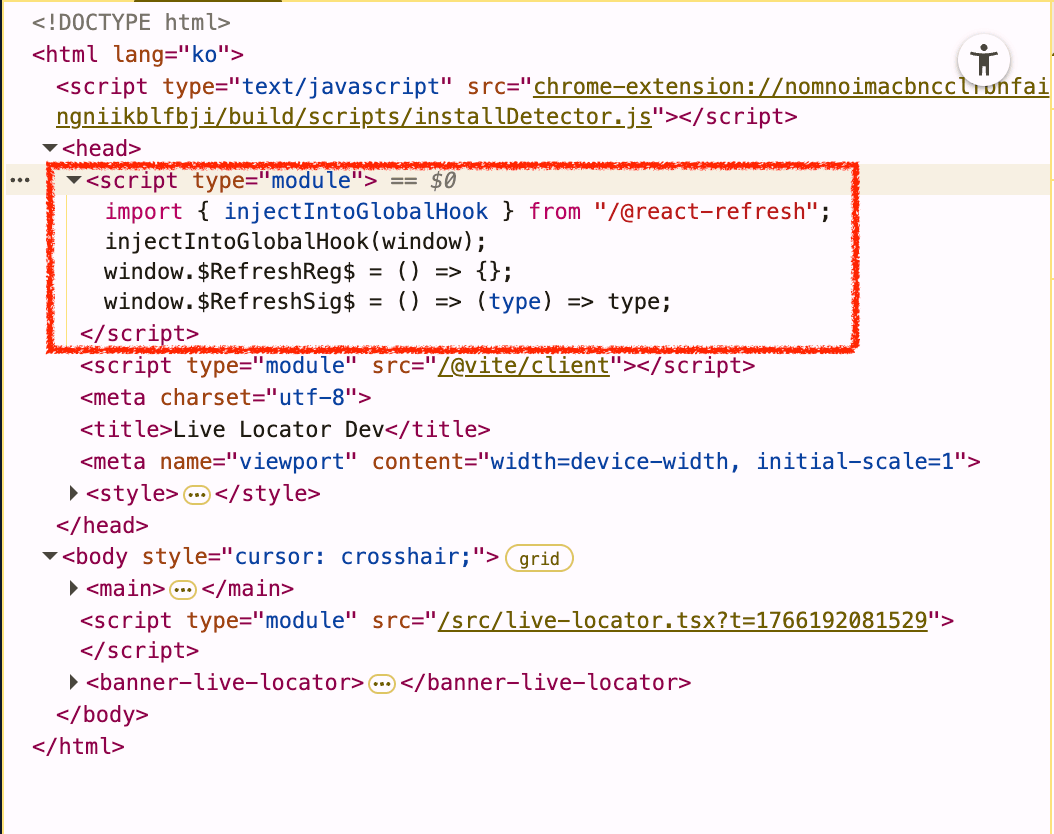
From Vite's perspective, the index.html that loads live-locator should
already have the preamble snippet injected, so each file's preparation should
work. But we skipped index.html and loaded live-locator directly, so Vite
spotted something odd and bailed.
The fix is simple: insert the preamble code directly in main.ts.
if (import.meta.env.DEV) {+const script = document.createElement("script");+script.type = "module";+script.textContent = `+import { injectIntoGlobalHook } from "http://localhost:5174/@react-refresh";+injectIntoGlobalHook(window);+window.$RefreshReg$ = () => {};+window.$RefreshSig$ = () => (type) => type;+`;+document.head.appendChild(script);liveLocatorScriptPromise = loadScript("http://localhost:5174/src/live-locator.tsx","banner-live-locator-dev",);} else {const url = new URL(/* @vite-ignore */ `live-locator/live-locator.js?v=${version}`,import.meta.url,).href;liveLocatorScriptPromise = loadScript(url, "banner-live-locator-prod");}
Note that we import the module from "http://localhost:5174/@react-refresh"
(not "/@react-refresh"). Now the
@vitejs/plugin-react can't detect preamble error is gone and LiveLocatorApp
loads properly.
You can even see where this code is generated in the Vite source:
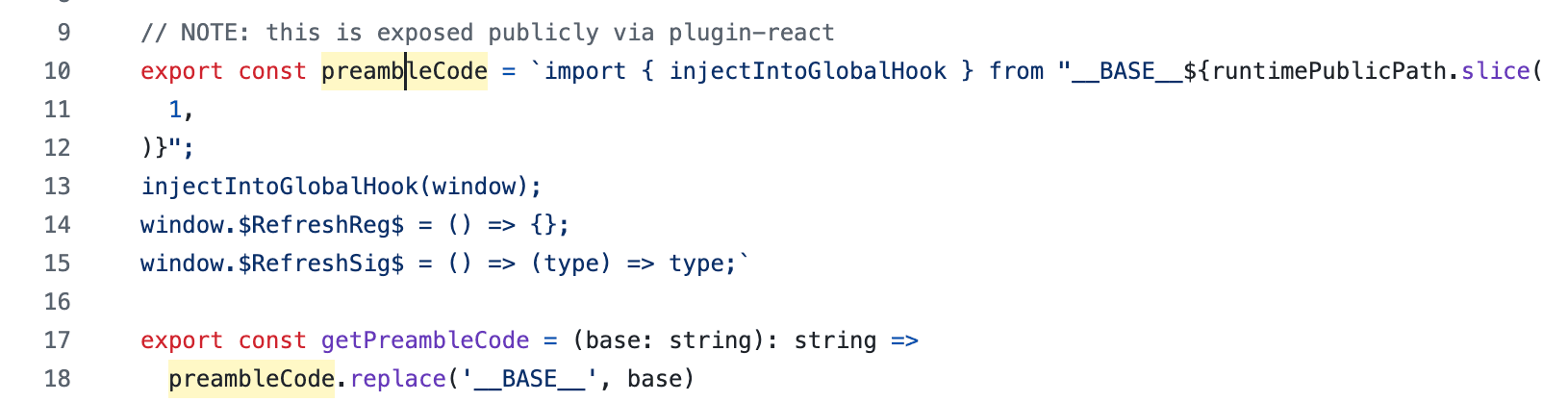
Tailwind
To apply Tailwind CSS, you can follow the official docs:
- Install Tailwind:
npm install tailwindcss @tailwindcss/vite - Add the Tailwind plugin to
vite.config.ts - Add
@import "tailwindcss";to a CSS file (and make sure it is imported)
As in a normal React app, let us import that CSS file in LiveLocatorApp.
import "./live-locator.css";
But there is a problem.
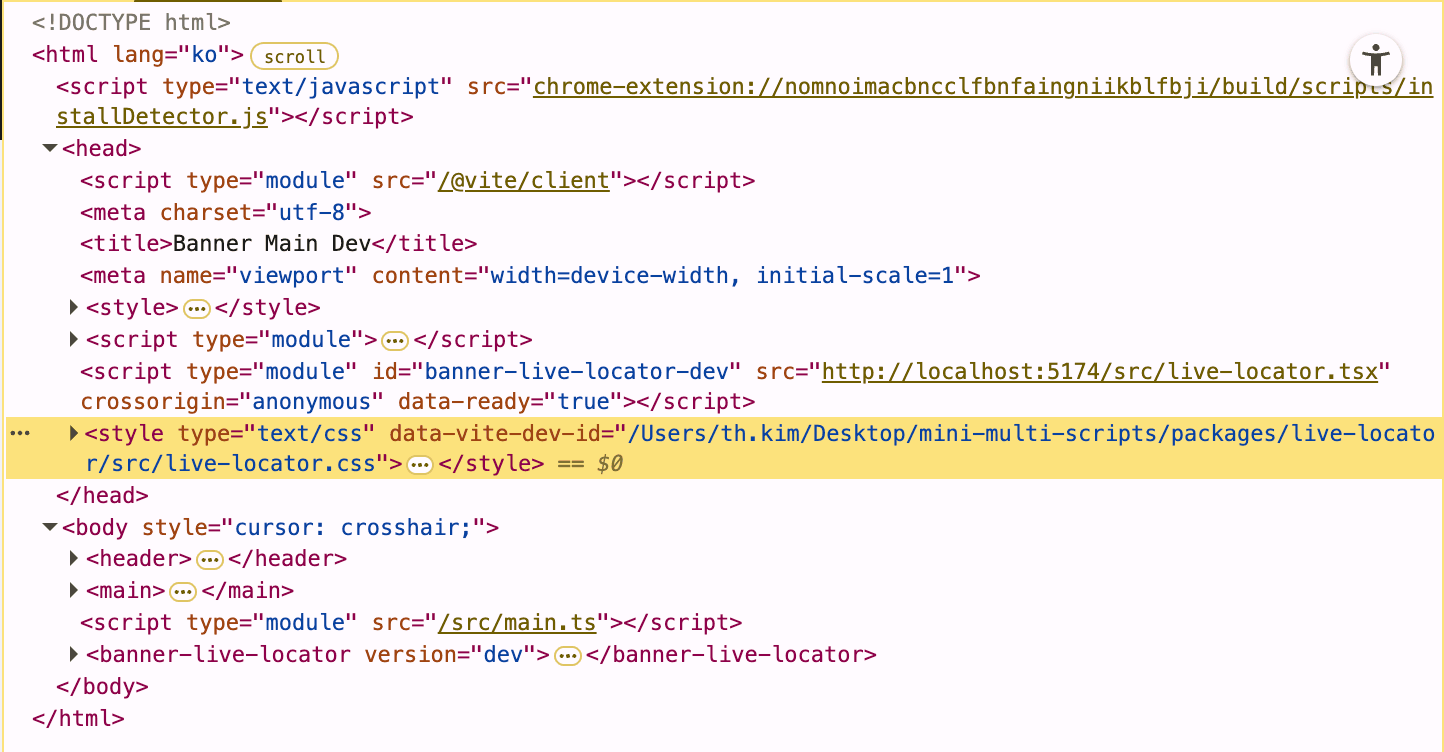
Our styles must not end up in head. They can affect the customer site
(and in production builds, it gets weirder, sometimes the CSS entry point does
not even show). Since we chose Shadow DOM for isolation, Tailwind must also run
inside the Shadow DOM boundary. The problem is that Tailwind was not designed
for Shadow DOM. Making it work is on us.
Fortunately, it is easy:
import styles from "./live-locator.css?inline";type LiveLocatorAppProps = {version: string;onClose: () => void;};export function LiveLocatorApp({ version, onClose }: LiveLocatorAppProps) {return (<><style>{styles}</style><div>hello world!</div></>);}
According to the
Vite docs,
adding ?inline returns the processed CSS as a string without injecting it
into the page.
Disabling CSS injection into the page
The automatic injection of CSS contents can be turned off via the
?inlinequery parameter. In this case, the processed CSS string is returned as the module's default export as usual, but the styles are not injected to the page.
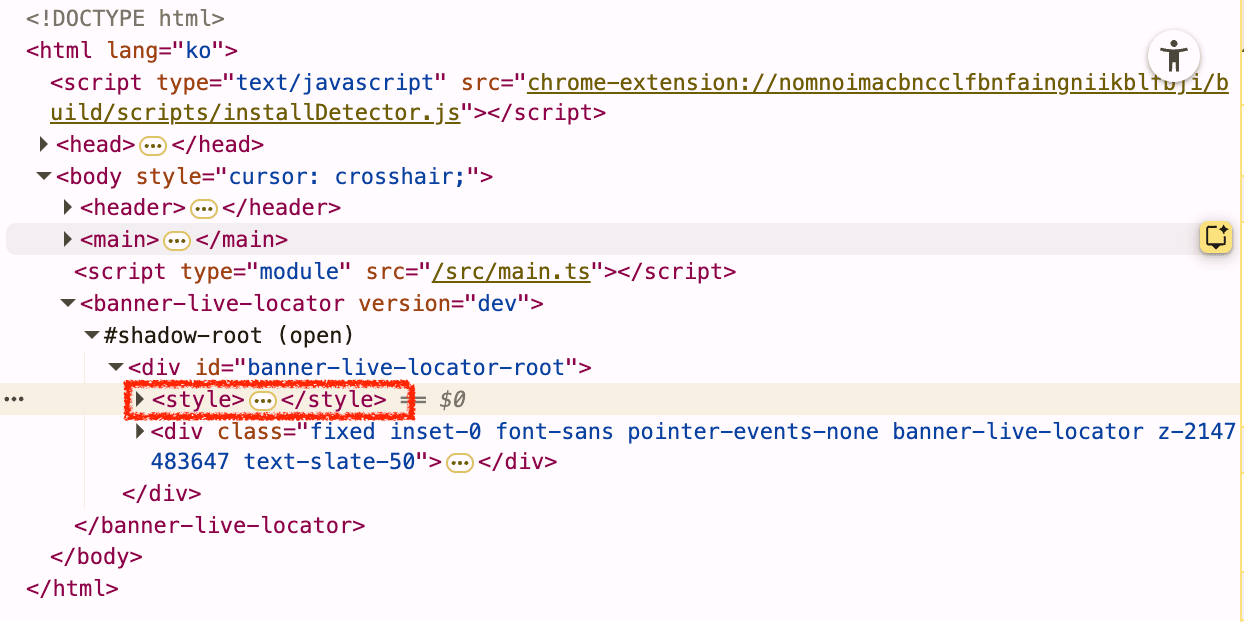
So we simply place that string into a <style> tag. Then you can confirm the
styles are inserted inside the Shadow DOM. Our <style> tag cannot affect the
customer site.
There is another issue. Inside Shadow DOM, CSS @property does not work
(tailwindcss#15005).
This is not a Tailwind bug; it is a standards issue that browsers have not
implemented yet. I ran into it because border styles were not being applied:
Tailwind v4 sets border-style via @property, but even that default value is
ignored inside Shadow DOM, so borders disappear.
So I added this to the CSS file:
:host {--tw-divide-y-reverse: 0;--tw-border-style: solid;--tw-font-weight: initial;--tw-tracking: initial;--tw-translate-x: 0;--tw-translate-y: 0;--tw-translate-z: 0;--tw-rotate-x: rotateX(0);--tw-rotate-y: rotateY(0);--tw-rotate-z: rotateZ(0);--tw-skew-x: skewX(0);--tw-skew-y: skewY(0);--tw-space-x-reverse: 0;--tw-gradient-position: initial;--tw-gradient-from: #0000;--tw-gradient-via: #0000;--tw-gradient-to: #0000;--tw-gradient-stops: initial;--tw-gradient-via-stops: initial;--tw-gradient-from-position: 0%;--tw-gradient-via-position: 50%;--tw-gradient-to-position: 100%;--tw-shadow: 0 0 #0000;--tw-shadow-color: initial;--tw-inset-shadow: 0 0 #0000;--tw-inset-shadow-color: initial;--tw-ring-color: initial;--tw-ring-shadow: 0 0 #0000;--tw-inset-ring-color: initial;--tw-inset-ring-shadow: 0 0 #0000;--tw-ring-inset: initial;--tw-ring-offset-width: 0px;--tw-ring-offset-color: #fff;--tw-ring-offset-shadow: 0 0 #0000;--tw-blur: initial;--tw-brightness: initial;--tw-contrast: initial;--tw-grayscale: initial;--tw-hue-rotate: initial;--tw-invert: initial;--tw-opacity: initial;--tw-saturate: initial;--tw-sepia: initial;--tw-drop-shadow: initial;--tw-duration: initial;--tw-ease: initial;}
Troubleshooting
The build output contains process.env.NODE_ENV
This happens because we are using Vite's library mode.
Library mode builds output meant to be used as a library. Libraries are for
developers, not end users, so dev-related information is preserved. For
example, when the format is es, it keeps whitespace to preserve tree-shaking
hints (like /*@__PURE__*/ comments).
live-locator includes React, so it also retains React dev info and
conditionals based on process.env.NODE_ENV, assuming it might be built again
in Node.js. But live-locator is actually meant to run in the browser. It is a
final artifact, not a library, so we do not need to preserve that info.
In the build command, you can fix it by forcing process.env.NODE_ENV to
"production" and stripping it from the output:
import tailwindcss from "@tailwindcss/vite";import react from "@vitejs/plugin-react";import { defineConfig } from "vite";export default defineConfig(({ command }) => ({// snipdefine:command === "build"? { "process.env.NODE_ENV": '"production"' }: undefined,// snip}));
Closing thoughts
I wrote "Production-Ready" in the title, but there is still more to do for a
real service. Especially for something like live-locator, you need permission
checks (admin auth) before loading. You also have to handle ops concerns like
error and log collection.
Building apps that run on other people's sites is really hard. Existing tools
assume a different environment. You cannot touch the host site, and you also
cannot be affected by it. Constraints are heavy, yet you still need great
developer productivity. In this post, we separated main and live-locator,
used conditional loading, Shadow DOM isolation, and fixed Vite HMR quirks one by
one.
If you build a real app like this, you will run into plenty of other bizarre issues beyond what I wrote here. But if you understand how browsers work, how bundlers like Vite generate code, and how front-end dev and build environments are structured, you will be able to navigate the challenges.
References
- Andar official site
- Beusable official site
- CREMA official site
- Google Tag Manager
- Vercel Live Feedback script (minified)
- mini-multi-scripts GitHub repository
- mini-multi-scripts live demo
- Amazon S3
- MDN: Element.insertAdjacentElement
- MDN: CustomElementRegistry.whenDefined
- Demo main.js (minified)
- Demo live-locator.js (minified)
- MDN: import.meta
- MDN: Using custom elements
- MDN: Using shadow DOM
- Vite Plugin React refresh utils
- Tailwind CSS Installation Guide (using Vite)
- Vite: Disabling CSS injection into the page
- Tailwind CSS Issue "@property isn't supported in shadow roots" #15005